Narinig Mo Ba
Narinig Mo Ba: A Practical Sari-Sari Shop Walkthrough
Narinig Mo Ba is a short browser horror story built around an ordinary-looking sari-sari shop. The first screen presents a hand-drawn neighborhood, a ColaSoda sign, and the subtitle “a sari-Sorry story.” After starting, the game places you behind a wire-covered shop window with shelves, a counter, a fridge, and customers who ask for familiar everyday items. The quiet setting gives the game its tension: you are doing small retail tasks while the dialogue gradually asks you to pay attention to what is being said.
This guide is written for the version embedded on Jjaemu. It focuses on the parts that can be verified directly in the running build: how to start, how to read the shop layout, how the pointer controls work, and how the first customer exchange is structured. The game build is available above, so you can keep the guide open while testing each interaction.
What Narinig Mo Ba feels like
Narinig Mo Ba does not begin with a chase or a loud scare. It begins with a shop front and a menu. The title screen establishes a local neighborhood atmosphere before the play area narrows your view to the counter. That change matters. The outside street gives context, while the counter view makes you study products, customers, and dialogue boxes.
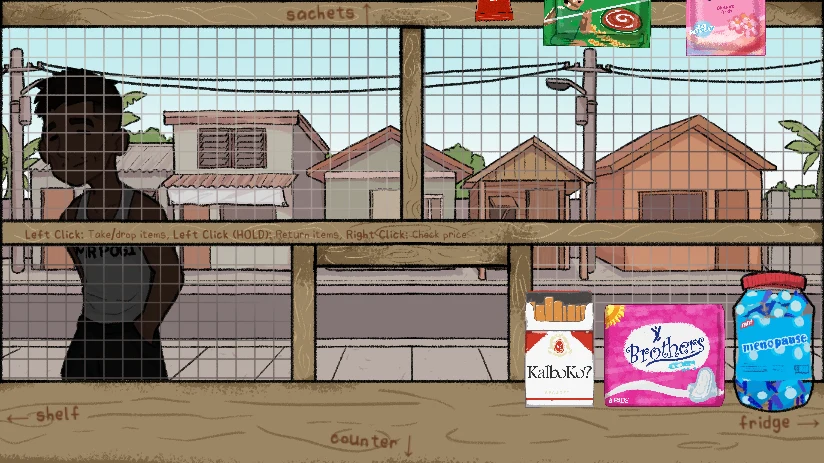
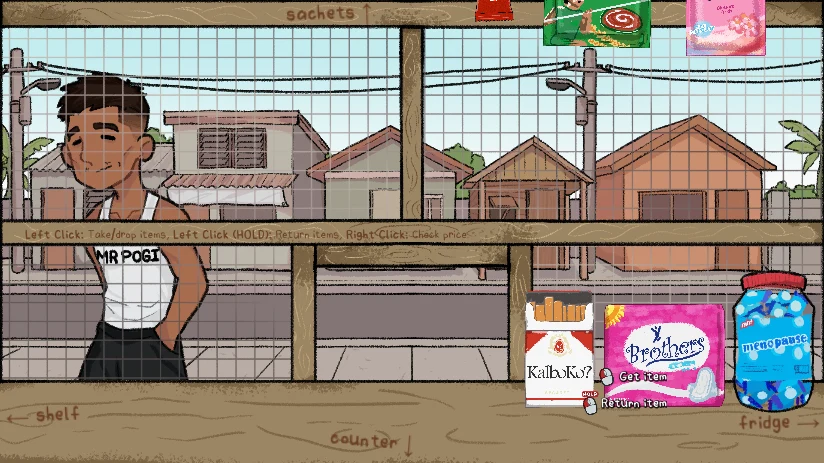
The shop is drawn with a visible grid and handwritten labels. At the top are sachets and hanging packages. Along the bottom are the shelf, counter, and fridge areas. Products sit on the counter, including a Kalb?K? package, a pink Brothers package, and a blue Menopause bottle. The unusual labels and the muted colors make the setting feel familiar and slightly off at the same time.
Starting narinig mo ba online
Open the game page and wait for the Godot loading screen to finish. When the illustrated menu appears, the central wooden buttons read START and EXIT. Click START once, then allow the short DAY 1 transition to finish. The first usable shop scene can appear after that transition, so a black screen or a large DAY 1 label during the changeover is not a reason to click repeatedly.
The embedded frame works best when it has focus. Click inside the game canvas before using the mouse. If the frame has just loaded, give it a moment to finish drawing the scene. The game is compact, but it uses a full illustrated canvas with a lot of small text, so a desktop browser or a larger tablet view makes the shop labels easier to inspect.
There is no download step in this page flow. The exact HTML build is loaded in the iframe from itch.zone. If the canvas remains blank, reload the page once and wait for the engine to initialize. Repeated clicks during the loading transition can leave you unsure whether the game accepted the first input, so use one clean start attempt.
Shop layout and what each zone means
The shop view is easier to understand if you divide it into three horizontal bands. The top band is the hanging stock area. It shows sachets and brightly colored packages above the wire. The middle band is the customer-facing window and the neighborhood beyond it. The lower band is the working surface where products, action prompts, and handwritten labels appear.
The left side is associated with the shelf. The center lower area is marked counter. The right side contains the fridge and the visible cold drinks. Mr Pogi may stand on the left side of the scene, behind the wire window. These landmarks are useful because the background houses look similar from one frame to the next. When you need to return to a product, use the handwritten labels and the position of the counter items instead of scanning the entire image at random.
The visual grid is part of the game’s language. It divides the scene into manageable areas and makes the shop feel like a place you inspect. The game does not present a conventional inventory panel in the first shop view. You manipulate objects where they are displayed, which keeps the action connected to the physical counter.
Mouse controls and item handling
The first shop scene displays three important instructions: left click takes or drops items, holding left click returns items, and right click checks a price. These instructions are easy to overlook because they are printed across the central wooden strip. Read them before trying to solve a customer request.
Left click is the basic object action. Move over a visible product and click once to test whether the item can be picked up or dropped. When an object is selected, the game can show Get Item and Return Item prompts near the counter. Holding the left button is distinct from tapping it, so do not assume every click has the same result.
Right click is the inspection action. Use it when you need to check a price or examine the intended object before committing to a pickup. If nothing happens, confirm that the canvas has focus and that the pointer is positioned over a product rather than over an empty part of the scene.
The safest routine is to inspect first, take second, and return only when you are sure the object is wrong or no longer needed. This sequence keeps the counter readable. It also reduces accidental clicks on neighboring products, which are close together in the lower-right section.
Reading the first customer request
One of the early visible exchanges is with Junjun. The dialogue line asks for a stick of coffee, followed by a small “click to proceed” prompt. This scene teaches two things at once. First, a customer request is delivered through a dialogue box rather than a floating quest marker. Second, the proceed prompt is separate from the product interaction, so you should finish reading before returning to the shop controls.
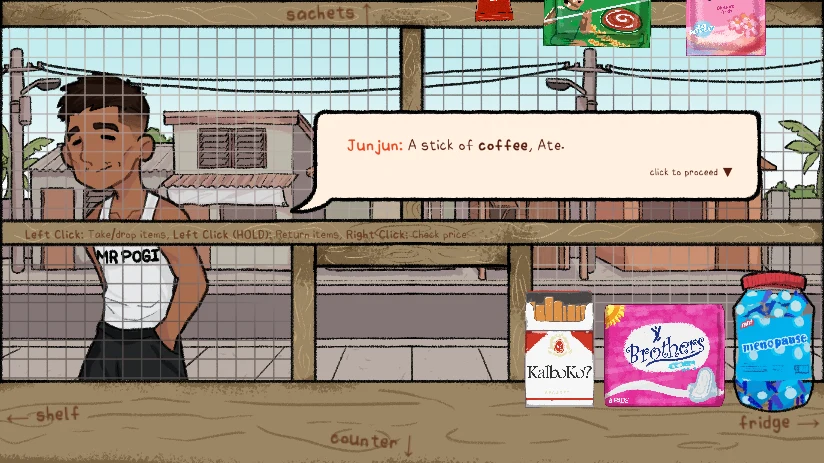
When the dialogue box is open, click the indicated proceed area once. Avoid clicking products while the conversation is still active because the dimmed shop behind the box is not the current interaction layer. After the line advances, watch for whether the next screen is another spoken line, a choice, or a return to the store. The game uses these changes to separate story reading from stock handling.
The request is deliberately ordinary. Coffee, packaged snacks, and cold drinks belong to the language of a neighborhood shop. Narinig Mo Ba uses that ordinary vocabulary to make the player notice small deviations in the conversation. Pay attention to who is speaking, what they ask for, and whether the request is followed by a new social question.
Dialogue choices and the debt exchange
The Junjun conversation can move from a product request to a question about debt. One visible choice asks, “Do you have plans to pay your debts today?” The available response is, “Not until you pay your debt, Junjun.” The game presents the line in a large gray choice panel over the dimmed shop.
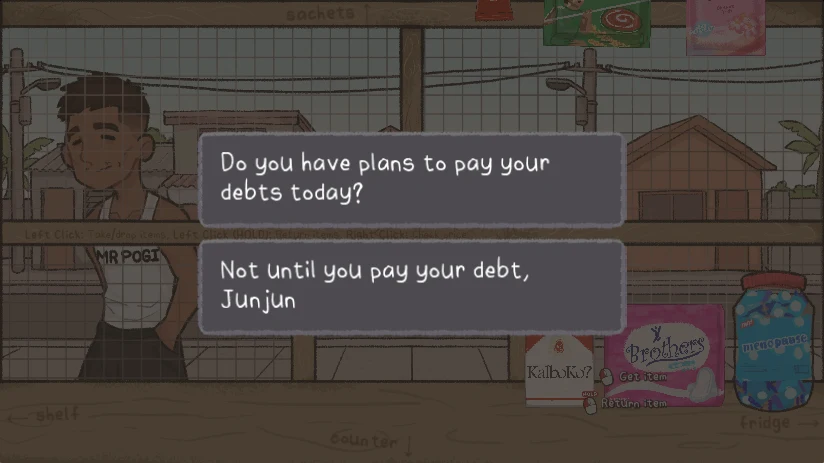
Treat this screen as a story decision, not as a timing challenge. Read the full question and the full response before clicking. The choice panel is visually different from the cream-colored speech box, so you can tell that the game has paused the shop layer and is waiting for a deliberate selection. If you are documenting your route, note the exact wording because a small change in a later exchange can reveal which branch you entered.
The debt line also explains why the game’s retail loop should not be separated from its story. You are serving a customer, but you are also managing a relationship. A product request can carry history, and a polite shop action can be followed by a sharper conversation. That contrast is the central rhythm of the opening section.
A reliable first-session route
For a clean first attempt, start by learning the screen rather than trying to click every object. Let DAY 1 finish, identify the shelf, counter, and fridge, and read the control strip. Next, inspect one product with right click. This establishes whether your pointer is focused and gives you a reference for the price-check behavior.
When Junjun appears, read the coffee request completely. Proceed through the speech box, then read the debt choice. If you choose a response, wait for the game to return to the shop before attempting another product action. This pause prevents a story click from being mistaken for an item click.
After returning to the shop, check the counter state. The Get Item and Return Item prompts may be visible near the products, and the game may place the next interaction close to the center-right. Use a single click, watch the prompt, and hold the left button only when you intend to return something. If you lose track of what changed, the fastest recovery is to stop clicking and compare the current screen with the three layout bands described above.
Common mistakes in the shop
The first common mistake is clicking START while the loading screen is still visible. Wait for the illustrated menu. The second is treating the DAY 1 card as a playable scene. Let the transition end before testing items. The third is using a left click for every action. The game explicitly separates ordinary item handling, held-left return behavior, and right-click price checking.
Another mistake is skipping dialogue because the shop remains visible behind the box. The background is still present, but it is dimmed to show that the conversation has priority. Read the line, use the proceed prompt, and wait for the next layer. A final mistake is assuming the first product request tells you everything about the story. Narinig Mo Ba makes the social context important, so dialogue wording deserves the same attention as the shelf.
Browser and mobile play notes
Use a current browser with JavaScript and WebGL support. The embedded game is a Godot HTML build, so it needs time to initialize before the menu responds. On a laptop, keep the game canvas focused and enlarge the browser window if the handwritten labels are hard to read. Full screen can help with inspection, but it does not replace learning the pointer actions.
On a phone or small tablet, landscape orientation gives the shop more room. Touch input can make a held-left action less comfortable, so take your time and confirm the prompt before dragging or holding. If the canvas appears too small, use the browser’s normal full-screen option rather than aggressive zoom that hides the game edges.
Narinig Mo Ba FAQ
Is narinig mo ba free to play?
The embedded browser build on this page can be started online without a separate download.
What does the title screen show?
It shows a hand-drawn neighborhood, a ColaSoda sign, the title Narinig Mo Ba, the subtitle “a sari-Sorry story,” and START and EXIT buttons.
How do I pick up an item?
The shop instructions say that left click takes or drops items. Click inside the canvas first, then use the pointer on a visible product.
How do I return an item?
Hold left click when you intend to return an item. The game displays a Return Item prompt near the counter during the relevant interaction.
How do I check a price?
Use right click over the product you want to inspect. If the action does not respond, focus the game canvas and try again.
What is Junjun asking for?
One visible opening line has Junjun asking for a stick of coffee. The request then leads into a dialogue exchange about debt.
Final checklist
Start once, wait through DAY 1, and learn the shelf, counter, and fridge positions. Read the control strip before touching products. Use right click for inspection, left click for taking or dropping, and held left click for returning. When Junjun speaks, treat the dialogue box and the choice panel as separate interaction layers. The most useful skill in Narinig Mo Ba is careful listening: the shop looks small, but the wording of a simple request can change how the scene should be read.
On Jjaemu, the Narinig Mo Ba player uses this direct HTML build: https://html-classic.itch.zone/html/18497771/index.html?v=1785020130.